Integrations
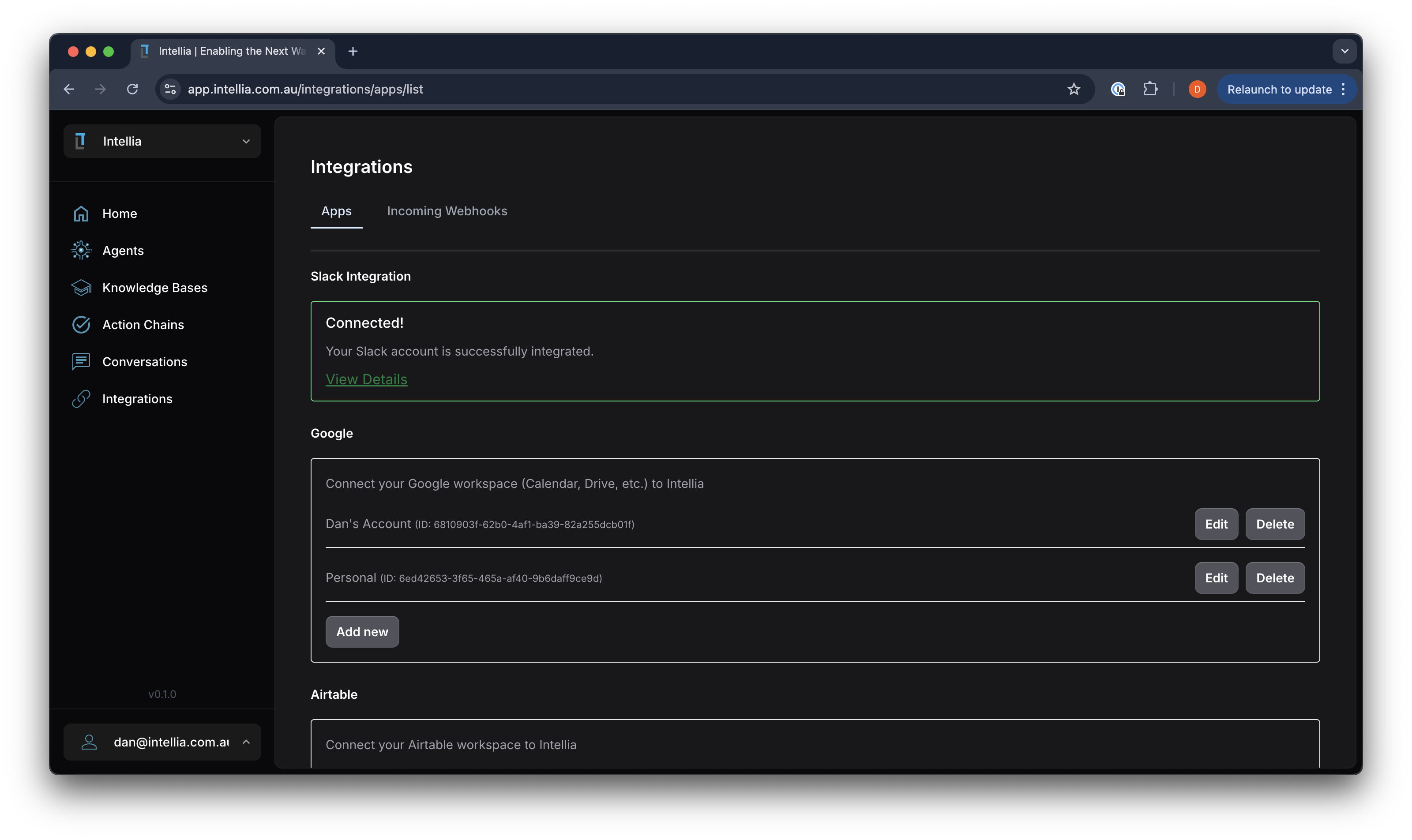
Accessible via: Main Menu -> Connections -> Integrations
The Connections column lists, in order:
- Connectors: Intellia’s native integrations, available to every workspace (Xero, Slack and Stripe), and the Password vault, as two tabs.
- Integrations: the catalogue of apps you connect through your own accounts, plus incoming webhooks, schedules and integration triggers.
- PropTech integrations: Australian property-management and CRM platforms, shown for real-estate workspaces.
The Intellia platform offers seamless integration capabilities, allowing users to connect various external services to enhance agent functionality. Here’s how integrations work: Single vs. Multiple Account Integrations: Some integrations, like Slack, can only have one account associated with the platform. Others, such as Google Workspace and Airtable, allow for multiple accounts, providing flexibility and personalized configurations.
API Keys vs. OAuth-based authentication: Some integrations, such as Google Workspace, use OAuth-based authentication. For these, you will be required to login/authorise Intellia to have access to the specific resources/operations that the Agents will perform. For API Key/Secret-based integrations, you will only need to enter the necessary keys.
Account Management: Users can view, edit, or add new accounts for integrations. This ensures that the platform remains adaptable to different user needs and organizational structures.
Tool Attachment: When attaching a tool to an agent, users are prompted to select which account to use. For instance, when integrating Google Calendar tools, users must choose the specific Google account that the agent will access.
This integration framework allows for a customized and efficient workflow, enabling agents to interact with various external systems and perform tasks effectively.
Stripe
Stripe lets your agents and workflows create Checkout links, Payment Links and subscriptions, and issue refunds, in your own Stripe account. Stripe moves money, so in web chat every call that moves it waits for a person to approve it, and a workflow refuses it, unless an admin or owner says otherwise.
Connect
An org admin or owner opens Connectors, picks Stripe, clicks Connect, and pastes a restricted key (rk_live_… or rk_test_…). Secret keys (sk_…) are refused. The key is checked with Stripe before anything is saved, and stored encrypted.
Create the restricted key in the Stripe Dashboard with these permissions:
- Checkout Sessions — Write
- Payment Links — Write
- PaymentIntents — Write
- Customers — Write
- Products — Write
- Prices — Write
- Subscriptions — Write
- Invoices — Write
- Customer portal — Write
- Charges and Refunds — Write
- Coupons — Read
- Balance — Read
- Payouts — Read
- Events — Read
- Accounts — Read
- Webhook Endpoints — Write (optional, lets us set up events for you)
Accounts — Read is required: the key check reads your Stripe account, and a key without it is refused with a message naming the missing permission. We recommend an agent-tagged restricted key, so Stripe’s own approval rules for agent keys also apply.
Test and live mode
A test key and a live key are separate connections, each labelled Test or Live on the card, the connection page and the agent’s tool settings. You can hold both, and more than one Stripe account.
Events
With Webhook Endpoints — Write, the events endpoint in your Stripe account is created for you when you connect. Without it, the connection page shows Manual setup with the webhook URL to add in Stripe, then Add secret for the whsec_… Stripe gives you. If events were missed while your organisation was out of credits, Replay under Events on the connection page fetches them again.
When money moves
Each agent or workflow that uses Stripe has a money setting:
- Off: calls that move money are refused.
- Confirm (the default): in web chat, Sammy shows an Approve / Deny card and the call waits for your decision. In a workflow, a scheduled run, a webhook-triggered run or any run with nobody present, the call is refused, whatever comes before it. To let a workflow move money, an admin or owner consents to Unattended for that workflow. An approval step in a workflow is the human sign-off in your process, not what lets the call through.
- Unattended: calls run straight through, up to any amount caps you set. It needs a chosen Stripe connection, so a connection added later never inherits it.
Only an org admin or owner can loosen these settings. Moving to Unattended takes a consent step that person clicks, and so does raising a cap or allowing a money operation while the setting is Unattended. A setting written by Sammy, a skill or a YAML file never loosens anything by itself. Every change is recorded on the connection’s activity page.
The Stripe starter module
The Stripe starter module in the Catalogue has six ready-made workflows. Activating a module that uses Stripe takes an org admin or owner. Its money calls install as Confirm and stay there until an admin or owner consents to Unattended.
- Create subscription checkout: returns a Stripe Checkout link for a subscription price, found by its lookup key.
- Create payment link: creates a reusable Stripe Payment Link for a price, found by its lookup key.
- On subscription change: handles Stripe subscription events from the connection’s webhook and returns the subscription’s current state.
- Refund a payment: refunds part or all of a payment after the person the caller names in
approverEmailapproves it by email. It can only issue the refund once an admin or owner consents to Unattended for it; set an amount cap on its Stripe tool before you do. - Await checkout: waits for a Checkout Session to finish and returns its final status. The checkout redirect is not proof of payment: fulfil from the
checkout.session.completedevent. - Resume checkout waits: resumes Await checkout when Stripe reports the session’s outcome. Bind it to the connection’s webhook. It resumes only sessions created with
metadata: { hutly_connector_resume: "stripe:checkout" }, which Create subscription checkout sets; set it on any session you create yourself for a workflow that waits on it. A resume that arrives before Await checkout has finished setting up its wait is tried once more a minute later.